This page covers our skull cap AI generator. Most problems happen in one of four places: the upload, the render, finding the finished video, and how it looks. Jump to the step that went wrong.
1. The photo won’t upload
- “Please use a JPG, PNG or WebP photo.” iPhones save photos as HEIC by default. Set the camera format to “Most Compatible”, export the photo as JPG, or screenshot it and upload the screenshot.
- “Photo is larger than 10 MB.” Shrink it, or upload a screenshot of it.
- “That file isn’t a photo we can read.” The file is broken or isn’t really an image. Save it again from your gallery.
Can’t press Generate? Add your photo first, then tick the box confirming it is your photo or that the person in it agreed.
2. “This photo can’t be used”
Every photo goes through a content check before the render starts. If it is blocked, nothing is charged: your credits stay unused, or, if you paid without an account, your payment stays valid and you can upload a different photo right there.
What passes: a clear photo of one fully clothed adult. What doesn’t: minors, celebrities, nudity, violent or hateful images, or anything meant to mislead people about a real person. The finished video gets the same check before delivery. If it fails there, you don’t get the video and the credits come back.
3. The video is taking a long time
A render takes a few minutes. You don’t have to watch it: close the tab and come back later.
- Taking longer than usual: the video service sometimes has a queue. Leave it running, and don’t pay again or start over.
- Still nothing after 24 hours: email support@skull-cap-ai.com with your order ID.
The free preview button doesn’t work
- You need to be signed in with a verified email. Sign in, then come back to the generator.
- It is one free preview per account and one per device. If you have used yours, the generator says so.
- “Today’s free previews are used up” means the site-wide daily limit is reached. The generator shows a countdown to the reset at midnight UTC.
4. “That render didn’t make it”
Sometimes the video service can’t finish a video. When that happens, the credits go back to your balance automatically. If you paid without an account, they go to the account under your payment email, and the result panel offers a retry.
If the same photo fails twice, change the photo. A sharper, front-facing shot fixes it most of the time.
5. I can’t find my video
You were signed in
Every video is listed under My videos.
You paid without an account
- Open the site in the same browser within 7 days. The video is waiting in the generator.
- Switched phone or browser? Sign in with your payment email and open My videos. Each guest video is saved to an account under that email.
6. The video doesn’t look right
It doesn’t look like me
One person, facing the camera, good light, sharp focus. No sunglasses, masks or beauty filters. Chest up works best: close enough for the face, wide enough for the outfit. If it still clearly isn’t you, email support@skull-cap-ai.com with your order ID and we will look at it.
No sound
Every video comes with the trend sound, lined up with the moment the camera tips up, about 4 seconds in. Videos on web pages often start muted, so tap for sound and check that your phone isn’t on silent. If the MP4 you downloaded has no sound, email support@skull-cap-ai.com with your order ID.
My clothes changed halfway through
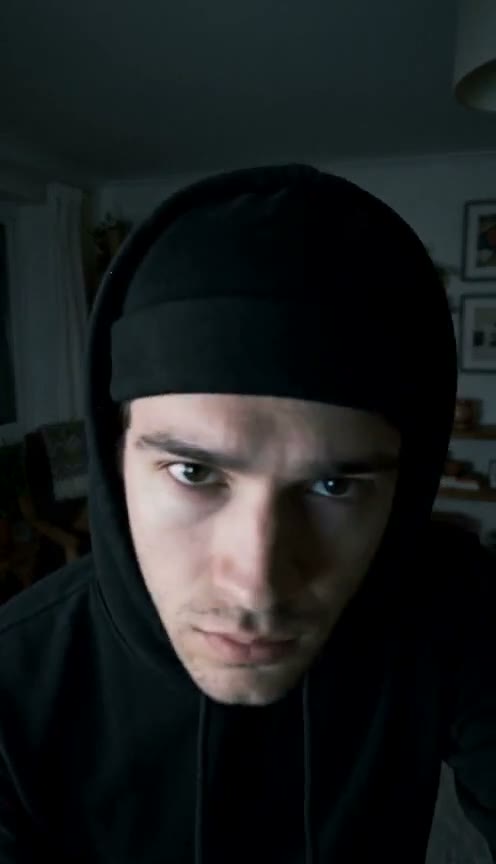
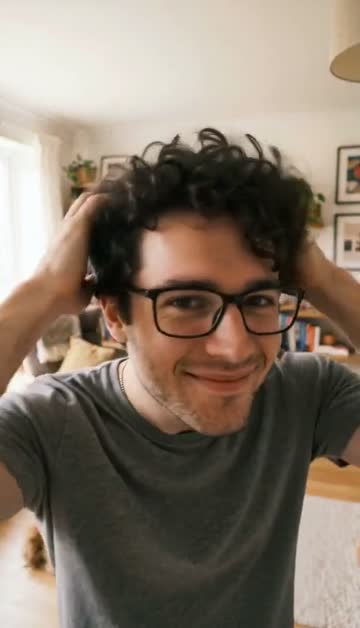
That is part of the look. The before part keeps the clothes from your photo; after the camera tips up you are in a black hoodie with the hood up and the skull cap, the way the trend is usually done.
It is vertical, not horizontal
Also expected. Every video is 9:16, the shape TikTok, Reels and Shorts use.
It was a photo of my pet
The generator is built for photos of people, so use a clear photo of one person.
7. Refunds and contact
Credits you haven’t used can be refunded within 7 days of buying them. Email support@skull-cap-ai.com from the address you bought with and include your order ID. We reply within 2 business days. The full rules are in the refund policy.
Skull cap AI troubleshooting FAQ
Why won’t my photo upload?
The generator takes JPG, PNG or WebP up to 10 MB. iPhone HEIC photos need exporting as JPG first, or take a screenshot of the photo and upload that.
Why was my photo rejected?
Every photo goes through a content check. Photos of minors or celebrities, nudity, violence or hate are blocked. Nothing is charged when a photo is blocked; upload a clear photo of one fully clothed adult instead.
How long should a skull cap AI video take?
A few minutes. You can close the page while it renders and find the video later under My videos.
I closed the page. Where is my video?
Signed in: open My videos. Paid without an account: open the site again in the same browser within 7 days, or sign in with your payment email and open My videos.
Do I lose credits if the video fails?
No. A failed render gives its credits back automatically. If the content check blocks the photo before rendering, the credits are never used.
Why can’t I hear the sound?
Every video comes with the trend sound. Videos on web pages often start muted, so tap for sound and check that your phone isn’t on silent. If the MP4 you downloaded has no sound, email us with your order ID.
Why doesn’t the video look like me?
Usually the photo. Use one person, facing the camera, face clearly visible, good light, no sunglasses or heavy filters. Far-away and group shots lose the face.